

A hospitalist opens Epic Canto on a tablet mid-rounds. She taps through two more screens than the nursing station desktop would require, and a drug-interaction alert stops the order cold. By the time she locates the potassium trend that explains the alert, she's wasted 45 seconds on a task that would take 10 seconds at a workstation-on-wheels. This is the hard reality of mobile EHR adoption: tablets aren't smaller desktops. They're a different workflow entirely, with distinct constraints on screen real estate, clinical decision support tiering, and clinician tolerance for friction.
The gap between the promise of tablet-based charting and the reality of adoption failures is wider than most organizations anticipate. Vendors market native apps like Epic Haiku and Canto as bedside solutions, but clinicians quickly discover that typing clinical notes on a 10-inch screen with an on-screen keyboard is slower and more error-prone than desktop workflows. At The HIT Community, we've tracked dozens of tablet rollouts over the past decade, and the pattern is consistent: initial pilot enthusiasm gives way to abandonment within 90 days of go-live unless the infrastructure, training, and clinical workflow redesign are deliberate from the start.
The decision to roll out tablet-based EHR access isn't binary. Instead, it's a series of choices about which clinical roles actually benefit, how to tier clinical decision support for smaller screens, and what connectivity and training infrastructure must be in place before clinicians touch a live chart. This post walks through those decisions, using real implementation examples and measurable outcomes to help you avoid the tablet rollout failures we see most often.
What mobile EHR access actually looks like in clinical settings
Mobile EHR access comes in several distinct flavors, and each has different performance and usability characteristics. Most vendors offer native apps optimized for tablets: Epic Haiku and Epic Canto for chart review and lightweight task workflows, Cerner PowerChart Touch for similar use cases, and athenahealth's native mobile interface for office-based EHRs. These apps are purpose-built for touch input and are faster than VDI-streamed sessions where an IT department pushes a full desktop EHR through Citrix to a browser on a tablet. However, native apps have a trade-off: they typically support read-heavy workflows and lightweight orders, not full charting and note-writing. Full order entry and narrative documentation still route to a desktop or workstation-on-wheels in most mature implementations.

Deployment models vary significantly. Mobile Device Management (MDM) enrollment requires tablets to be institutional assets, managed centrally, remotely wipeable, and subject to certificate-based VPN authentication before clinicians access PHI. This model is slower to deploy but offers tighter security and consistent app configuration across all units. Bring-Your-Own-Device (BYOD) approaches give clinicians flexibility, but compliance and security enforcement become harder to monitor. A hybrid approach, institutional tablet carts assigned to specific units, with clinicians also able to install the EHR app on personal devices, balances convenience and control.
A practical decision rule: if a clinical role spends more than half its shift documenting narrative notes, transcribing complex histories, or writing assessment-and-plan paragraphs, a tablet alone will not replace the desktop workstation, no matter how polished the native app is. The on-screen keyboard and touch interface are simply not fast enough for note-intensive workflows. Bedside nursing, hospitalist rounding, ED triage, and home health field visits are the sweet spots. Complex documentation roles need a desktop fallback.
"A majority of physicians report regularly using a smartphone or tablet to access clinical information at the point of care."
Deployment models for mobile EHR access
- Native vendor apps (Epic Haiku/Canto, Cerner PowerChart Touch, athenahealth) optimized for touch, chart review, and order review without full documentation.
- VDI-streamed full EHR sessions through Citrix or similar, feature-complete but slower performance on cellular and WiFi latency.
- MDM-managed institutional tablet carts assigned to a unit, with centralized enrollment, app allowlisting, and remote wipe capability.
- BYOD clinician-owned devices enrolled individually, faster adoption but harder to enforce compliance and app version consistency.
- Hybrid: institutional carts as primary, with BYOD as an opt-in second option for clinicians wanting personal device access.
- Offline-capable mobile EHR clients (Epic Canto offline mode, Cerner Millennium mobile) that cache chart data and queue orders for sync when connectivity returns.
Does clinical decision support work the same way on a tablet as a desktop workstation?
Clinical decision support (CDS) logic fires on the same trigger rules regardless of device: a medication interaction alert, a contraindication check, a quality metric reminder. The FHIR standard and CDS Hooks specification ensure that the alert logic is device-agnostic. But the user experience is not. A desktop workstation with dual monitors can show a medication reconciliation table, a drug interaction matrix, recent lab trends, and an alert dismissal button all at once. A 10-inch tablet shows a fraction of that information without scrolling, forcing clinicians to make fast decisions with an incomplete picture.
The tablet interface also changes the acceptance and override workflow. On a desktop with a mouse, the accept or override button is large and deliberate. On a touchscreen, tap targets must be sized carefully, typically 44 pixels or larger, to prevent accidental dismissal of a hard-stop drug interaction alert. Smaller buttons lead to user frustration and, paradoxically, more alert dismissals out of frustration rather than clinical judgment. Informaticists building the tablet interface often find that alert tiering becomes a critical decision: passive advisories can collapse to a small banner notification on the tablet view, but hard-stop alerts cannot be suppressed without legal and clinical risk.
This is where alert fatigue intersects with screen constraints. Screen-size limitations push some organizations to suppress lower-priority CDS alerts entirely on mobile workflows. The logic is that bedside chart review is different from order entry at a desktop, so lower-priority alerts are noise. But this shifts risk rather than removing it. A clinician who misses a mild contraindication alert because it was suppressed on the tablet may make a different decision later when ordering at a workstation, if they remember to check.
"Clinicians override the majority of medication-related clinical decision support alerts, a pattern widely documented as alert fatigue and associated with reduced trust in CDS systems."
— PubMed Central studies on clinical decision support alert override rates
Why do clinicians abandon tablet-based EHR workflows after go-live?
The first 90 days after a tablet rollout tell the story. Pilot enthusiasm, clinicians love the idea of bedside charting, collides with workflow friction. On-screen keyboard input is slow and error-prone compared to a physical keyboard and mouse. Switching between the EHR app, secure messaging, a voice dictation tool like Nuance Dragon Medical, and a photo app to upload an image feels like more friction than sitting down at a multi-monitor desktop for 10 minutes, even if the actual task time is similar. Muscle memory for tablet gestures (swipe-to-sign, pinch-to-zoom on imaging) takes weeks to form, and during that ramp-up period, usability complaints cluster fast.
Bedside super-user support is also harder to staff than a fixed IT walk-up desk. A clinician who hits a usability friction point at a fixed workstation can grab an IT person passing by, or call the helpdesk, and get screen-sharing support in minutes. A clinician holding a tablet at a patient's bedside may avoid the helpdesk entirely and just switch back to paper or pencil-and-paper notes to complete the task. That abandonment happens silently in the first month post-go-live, and by the time a post-implementation review asks how the tablet rollout is going, clinicians report "I don't use it much" without specifying why.
Our research on clinician burnout and EHR usability frustrations found that the first month post-launch is the critical window. Organizations that invest in at-the-elbow super-user support during week one and week two see significantly better adoption rates by day 90 than those that rely on helpdesk callbacks alone.
Which clinical roles get the most value from tablet EHR workflows?
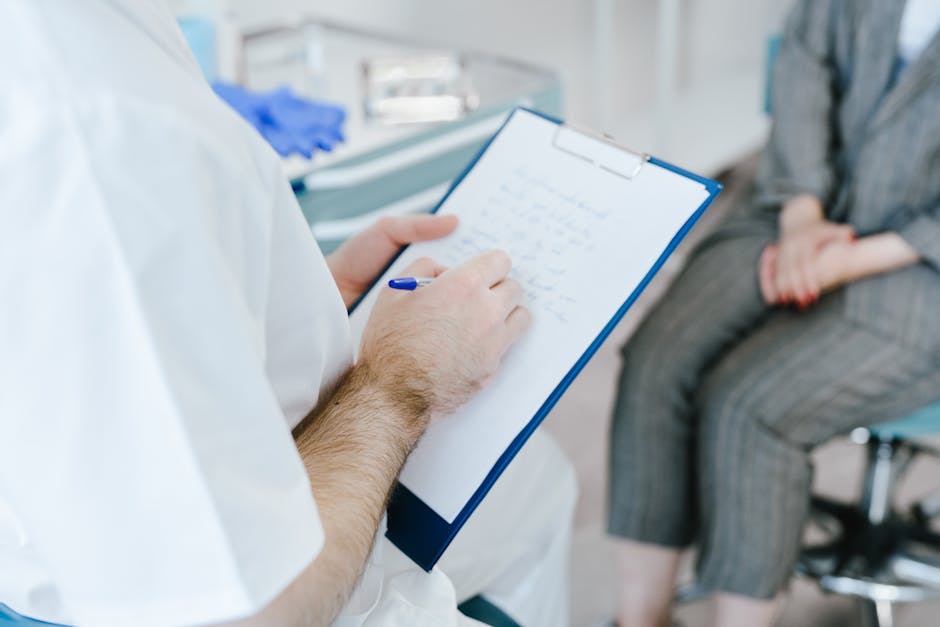
Tablet-based EHR access is not a replacement for desktop workstations; it's a complement to them, suited to specific clinical workflows. Bedside nursing staff benefit from quick medication reconciliation, allergy review, and charting updates without leaving the patient's room. Hospitalist rounding is faster with a tablet for quick chart review and order review at the bedside, reducing the time spent walking back and forth to a workstation. ED triage staff can pull allergy and medication history on a tablet before the patient is formally registered, speeding up the registration process and reducing duplicate data entry.
Home health and field-visit workflows benefit from offline-capable tablets that cache the chart during the visit and sync once cellular or WiFi connectivity returns. Behavioral health telehealth is one of the best use cases: the tablet runs the video session and documentation concurrently, a workflow detailed in our guide to behavioral health EHR documentation workflows. The clinician is already looking at a screen for the video, so adding a split-pane documentation interface is natural.

But surgical operative notes, complex histories and physicals, and detailed progress notes on patients with multiple comorbidities still perform better on a desktop or workstation-on-wheels. These workflows require a physical keyboard, multiple reference windows, and the ability to maintain focus for 15-20 minutes without interruption. A tablet encourages quick, fragmented interactions, perfect for medication review and ordering, but not for deep documentation.
What connectivity and security infrastructure does tablet-based CDS require?
Mobile Device Management (MDM) enrollment is the prerequisite. Before any tablet touches protected health information, it must be enrolled in MDM, which means remote wipe capability, app allowlisting, and certificate-based VPN authentication. This is not optional if you want to maintain HIPAA compliance and avoid the risk of a lost or stolen tablet containing unencrypted patient data. Enroll devices before they leave IT.
WiFi dead zones are a reality in hospitals. Stairwells, basements, shielded imaging suites, and outdoor areas often have poor coverage. If a clinician starts charting with an active FHIR sync and moves into a dead zone mid-note, the sync breaks. Real-time clinical decision support can't fire if the app can't reach the EHR server. The solution is offline-capable EHR apps that cache read-only chart data before an encounter and queue orders and notes for sync once connectivity returns, with a defined cache-expiration window (typically 4-8 hours) before local data purges automatically. Test your WiFi heat map before rollout and map dead zones so clinicians know where tablets will and won't work reliably.
Rural and low-bandwidth facilities face the same sync-delay problem at a larger scale, covered in detail in our guide to broadband limitations affecting EHR connectivity. If your facility has less than 5 Mbps downstream internet, tablet rollout is premature without infrastructure upgrades.
Tablet infrastructure checklist
- MDM enrollment mandatory before any tablet accesses PHI; configure certificate-based VPN authentication.
- WiFi heat-map validation: test signal strength in all clinical areas and document dead zones where tablets will not sync reliably.
- Offline-capable EHR app configuration: define cache-expiration window (typically 6 hours) and queue logic for orders and notes pending sync.
- Cache-expiration policy: establish when local data auto-purges if sync has not completed, to minimize risk of clinicians charting stale data.
- Device management: assign tablets to specific units and clinical roles, or implement BYOD enrollment with compliance audits quarterly.
- Secure messaging integration: ensure tablet access to secure messaging does not require re-authentication more than once per shift.
Training clinicians on tablet workflows before go-live
Sandbox training is the foundation. Before clinicians touch a live chart, they need hands-on time in an EHR sandbox environment practicing tablet-specific gestures: swipe-to-sign, pinch-to-zoom on imaging, tap-and-hold to access context menus. Muscle memory for these gestures takes time to develop, and sandbox time removes the cognitive load of learning new interactions while also learning how to interpret the data on the screen. After sandbox training, super-users should shadow new tablet users for the first two to four rounding sessions after go-live, coaching them through friction points and catching questions before they lead to workflow abandonment.
Roll out by unit rather than hospital-wide. Launch on a single unit, say, the hospitalist service, for 30 days, measure adoption and ticket volume, then move to the next unit (ED, then behavioral health, then medical floors). A hospital-wide rollout creates a support crisis: the helpdesk gets swamped, super-users are spread thin, and clinicians with unresolved friction points give up on tablets by week two. A phased unit-by-unit approach lets you learn from the hospitalist pilot, adjust the app configuration and training approach based on what you learned, and apply that to the ED rollout.
Dedicated at-the-elbow support during the first week cuts ticket volume significantly. A 2-person team of super-users stationed on the pilot unit during week one, available to shadow clinicians and resolve friction points in real-time, is more effective than a 10-person helpdesk fielding callbacks. As peer super-user training research shows, our guide to sandbox training before go-live covers how super-user models shorten the proficiency ramp-up time compared with classroom-only instruction.
Adapting documentation templates for touch-screen charting
Macro templates built for keyboard-and-mouse input break down on a touch keyboard. The tap targets are too small, the field order assumes a mouse-driven workflow, and required free-text fields that are fast on a desktop are slow on a tablet. Rebuild the template, not just resize it. Replace free-text fields with tap-selectable structured fields wherever possible, chief complaint, vital sign alerts, medication allergy flags, assessment template phrases. This offsets the on-screen typing friction by letting clinicians build a note from components rather than typing it from scratch.
Add a dictation fallback for narrative sections that cannot convert to structured fields. Nuance Dragon Medical mobile integrates with Epic, Cerner, and other major EHRs and lets clinicians dictate progress notes directly into the EHR app. The voice-to-text quality is high, and the integration is seamless if configured correctly pre-go-live. Don't retrofit dictation after go-live; it takes weeks for IT to debug integration issues and clinicians will have already abandoned the tablet.
Base the touch-adapted template on the same design principles covered in our piece on macro template design for clinical documentation, then adjust for finger-sized input and the limited screen real estate. Test the template in sandbox before rollout, and have super-users try to break it with realistic rounding scenarios.
Touch-optimized template adjustments
- Fewer required free-text fields; replace with tap-selectable structured options (medication names, assessment phrases, decision trees).
- Larger button targets for accept/override/save actions; minimum 44 pixels, ideally 48-56 pixels, to prevent accidental taps.
- Dictation fallback for narrative sections; integrate Nuance Dragon Medical mobile pre-go-live, not after.
- Offline-safe autosave every 30 seconds to local cache, not just on final save; limits loss if sync is interrupted.
- Single-column layout for tablet view, not multi-column; horizontal scrolling is slower than vertical scrolling on a tablet.
- Reorder fields for bedside workflow, not administrative workflow; allergy and medication reconciliation first, assessment and plan at the end.
How do you measure whether a tablet rollout actually improved workflow?
Track quantifiable metrics before and after rollout. Measure time-to-first-documentation after a patient encounter, order turnaround time from order placement to pharmacy receipt, and clinician-reported alert-override rate. Compare tablet override rates against the desktop baseline; if the tablet override rate is 20 percentage points higher than desktop, the issue is not clinician behavior, it's CDS alert tiering or screen-real-estate constraints that need fixing. Weigh tablet and MDM licensing cost per clinician per shift against measured time savings in documentation, order entry, and bedside review. Don't compare against sticker price alone; a $500 tablet makes sense if it saves a clinician 30 minutes per shift, and nonsensical if it saves 5 minutes.
"Point-of-care mobile EHR access has been associated with faster order turnaround time and reduced time-to-documentation compared with fixed workstations in clinical settings."
— PubMed Central research on mobile EHR impact on workflow efficiency
Piloting a tablet rollout before it goes hospital-wide
Commit to a 30- to 60-day pilot on a single unit before scaling hospital-wide. Hospitalist services are the easiest starting point because the workflow is chart-review-heavy and the feedback loop is fast. Gather quantitative data on time-to-documentation, alert-override rates, and ticket volume from the pilot. Bring super-users and informaticists into the pilot from day one. The informaticist needs to see how alert tiering actually behaves in a real rounding workflow, not in a testing environment. The super-users need to observe clinician friction points in real time so they can anticipate questions during the rollout to the next unit. A pilot without the right people watching and learning is just a delayed go-live.
By the end of the pilot, you'll know whether tablets actually improve workflow in your clinical setting, which clinical roles benefit most, which app configurations and training approaches work, and what connectivity and support infrastructure you need before scaling. That knowledge, grounded in real data from your own clinicians, is worth more than any vendor benchmark or peer-comparison study. Use it to make the rollout to the next unit faster, cheaper, and less painful.